PandaSuite Viewer: A New Interface and Testing Tools
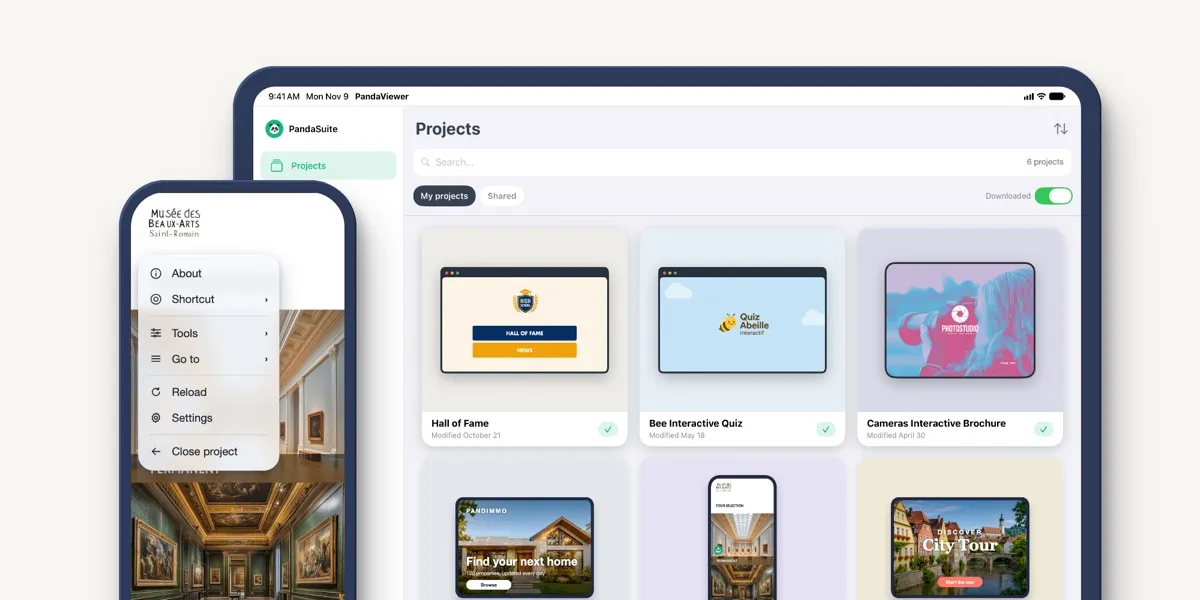
We’ve reworked PandaSuite Viewer, your iOS and Android app for testing your projects on your phones and tablets! 🎉 Our goal: bring it in line with the dashboard and make it a better fit for the way you test.
The update is available on the App Store and Google Play: Update PandaSuite Viewer. Your projects open just as they did before.
Your Projects Look the Same Everywhere
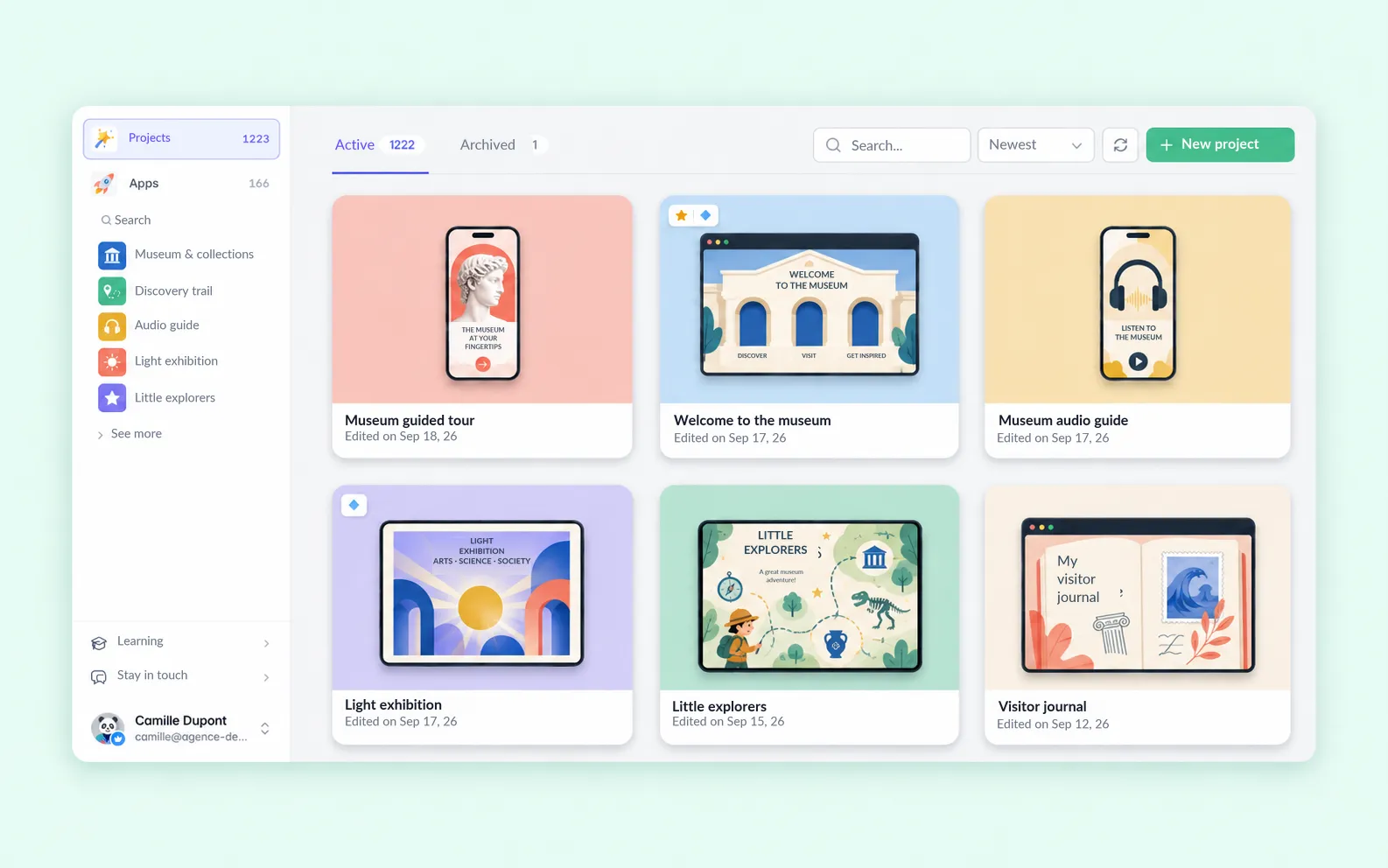
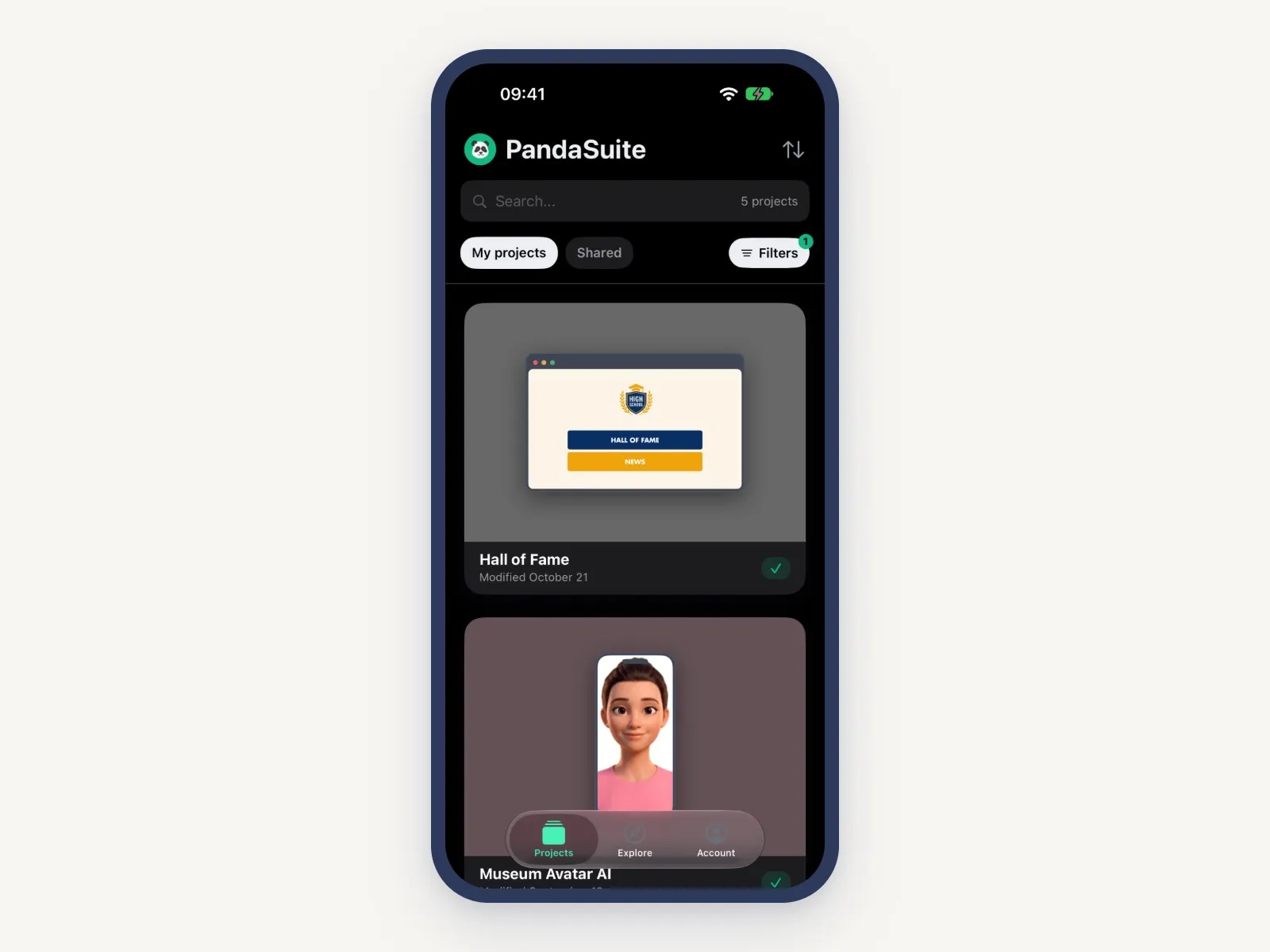
The Viewer’s project list now has the same shape as the one in your new dashboard. Your projects sit in two tabs: My projects, and Shared for the ones others have shared with you.
A Filters button narrows the list: Downloaded keeps only the projects saved on the device, the ones you can open offline, and a badge counts the active filters.
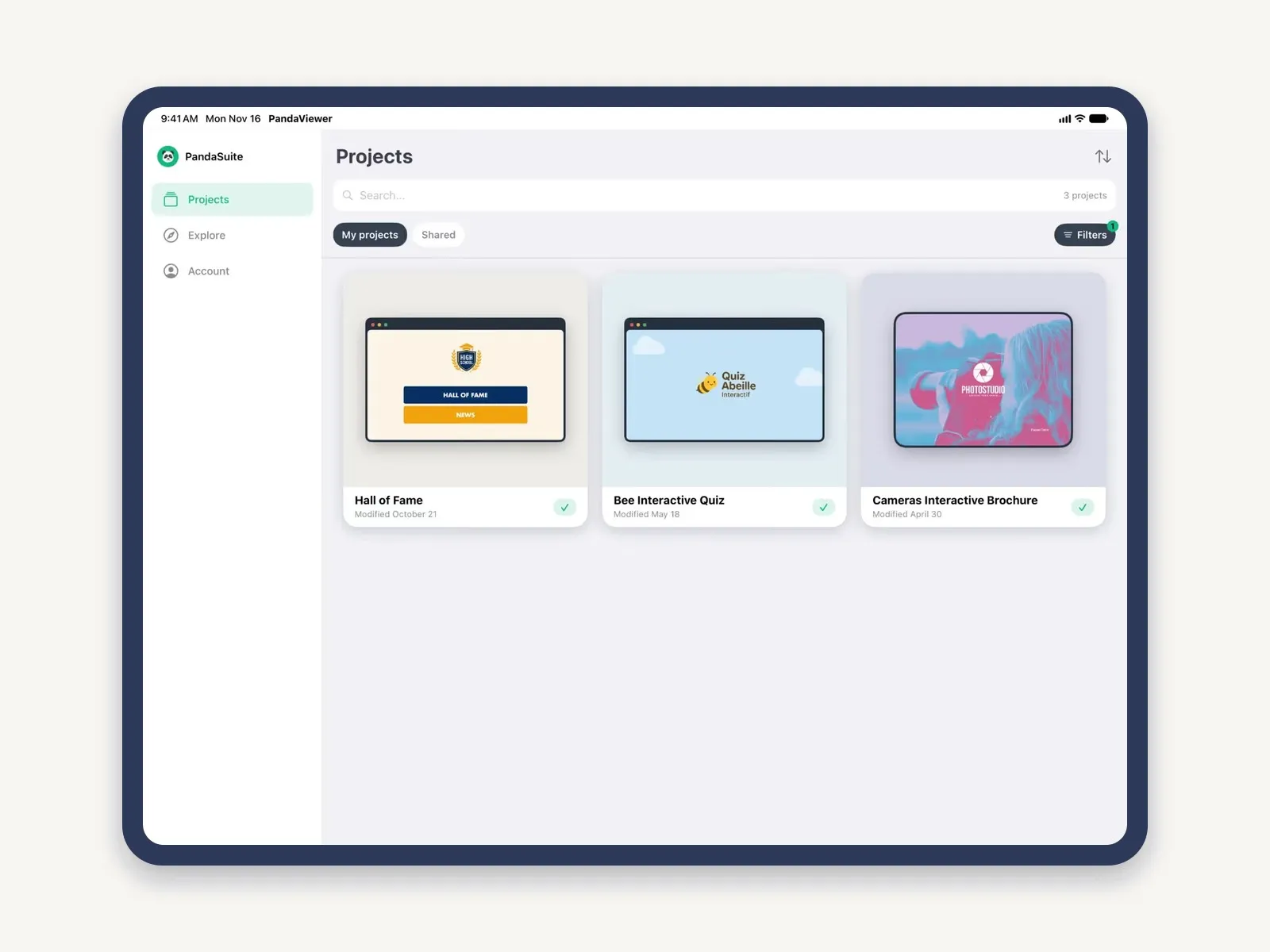
Navigation now has three entries: Projects, Explore and Account. They sit in a bar at the bottom of the screen on a phone, and in a sidebar on a tablet.
Dark Mode
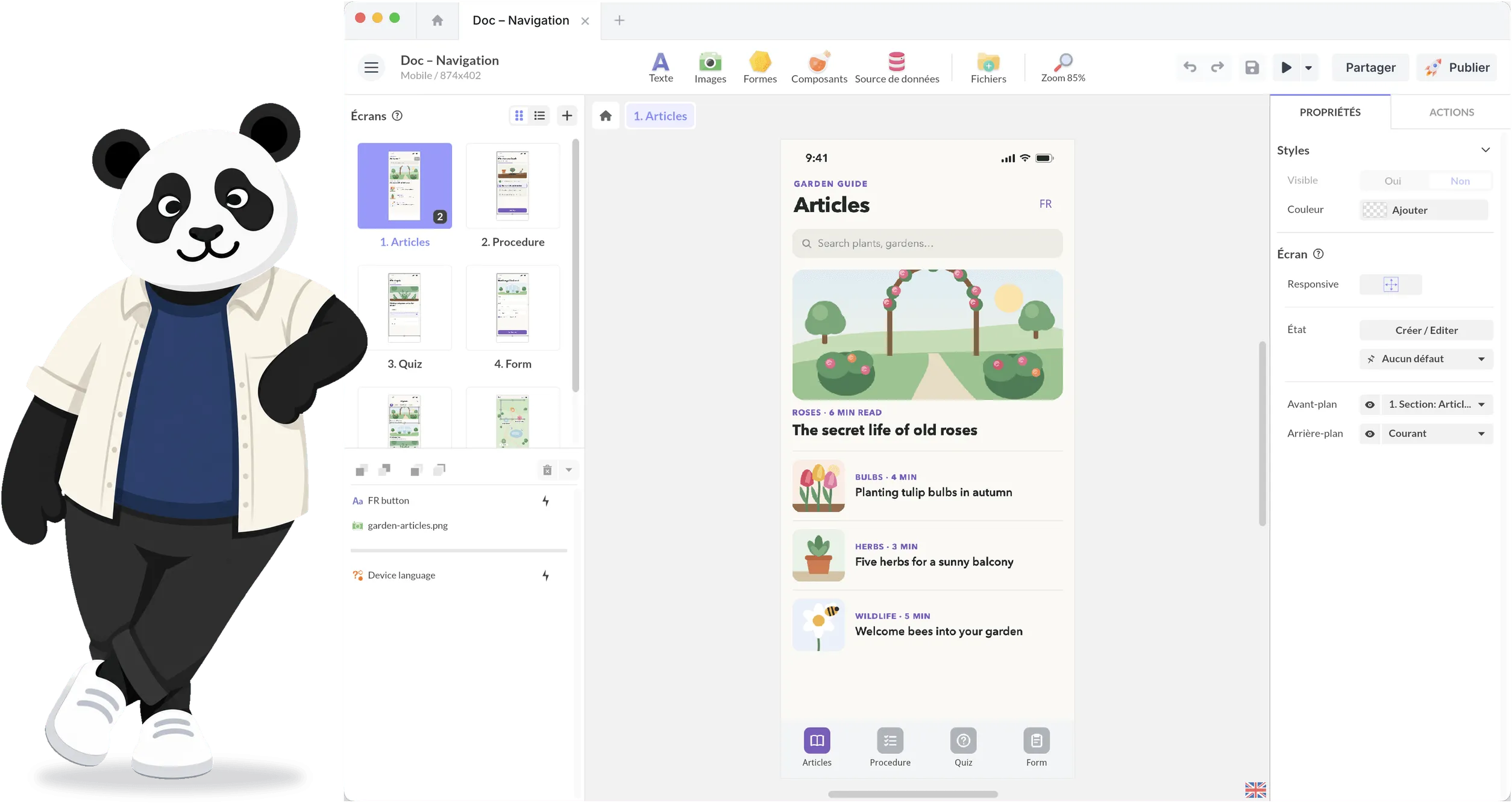
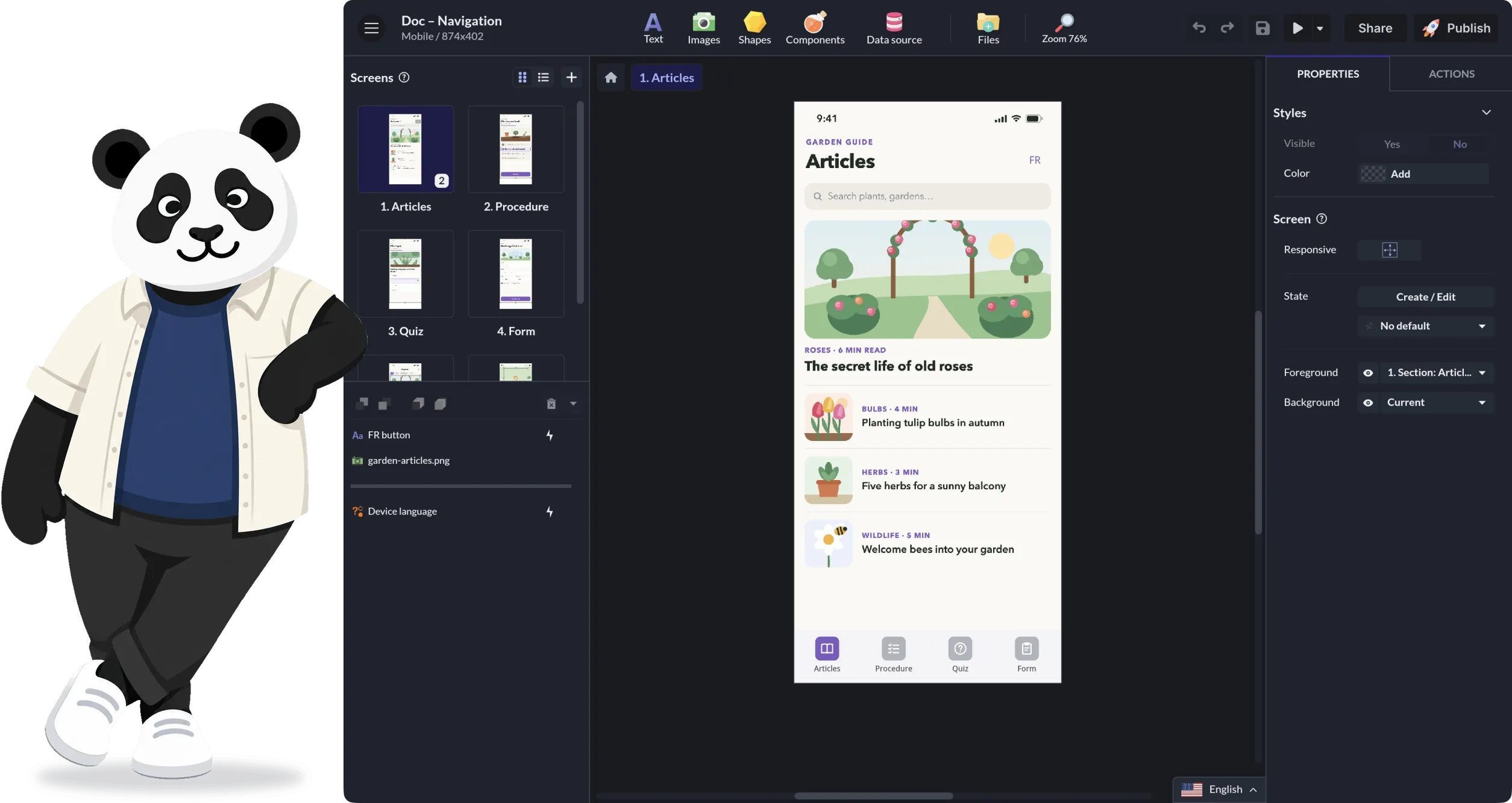
In Account, choose a light, dark or automatic appearance to follow your device’s setting. On Android, you also get a high-contrast option.
A Panda Button for Quick Actions
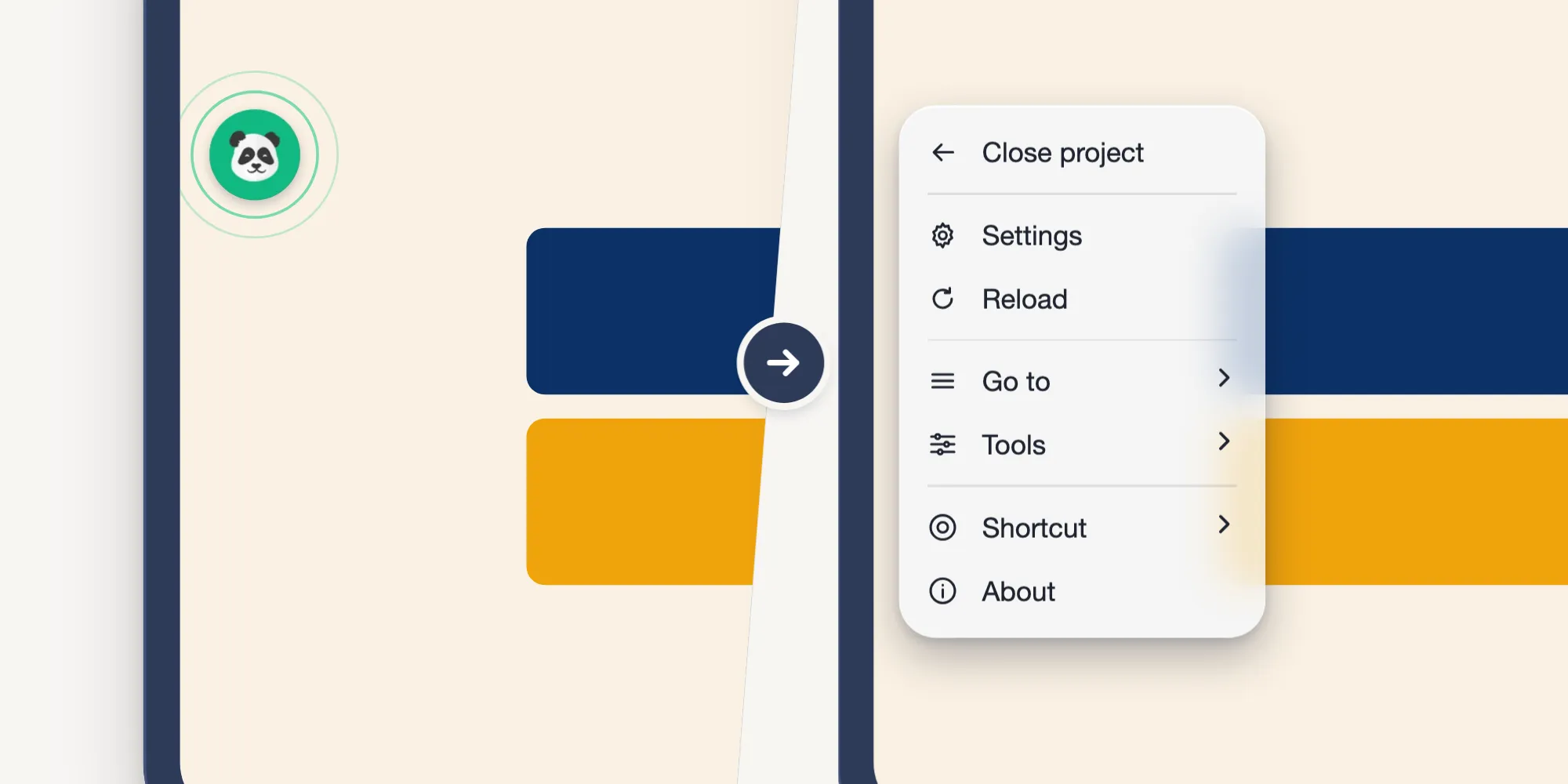
While you test a project, a panda button stays at the edge of the screen. It opens a menu with your actions:
- Close project, to go back to the home screen;
- Settings;
- Reload, to restart the project;
- Go to: the list of the project’s screens, with thumbnails, so you can jump straight to the one you want to check;
- Tools, which the next section covers;
- Shortcut, to move the panda button, or show and hide it;
- About, to see the project’s details.
Testing Tools for Your Own Projects
The panda button’s Tools menu helps you understand what’s happening on screen while you test:
- Analysis: the components on the current screen, named as in the Studio palette, and the state of each layer. For the project: the number of screens, the languages, the media and the size on disk.
- Views: show or hide the screen, the foreground and the background, and force a state. Reset puts the project back in its original states.
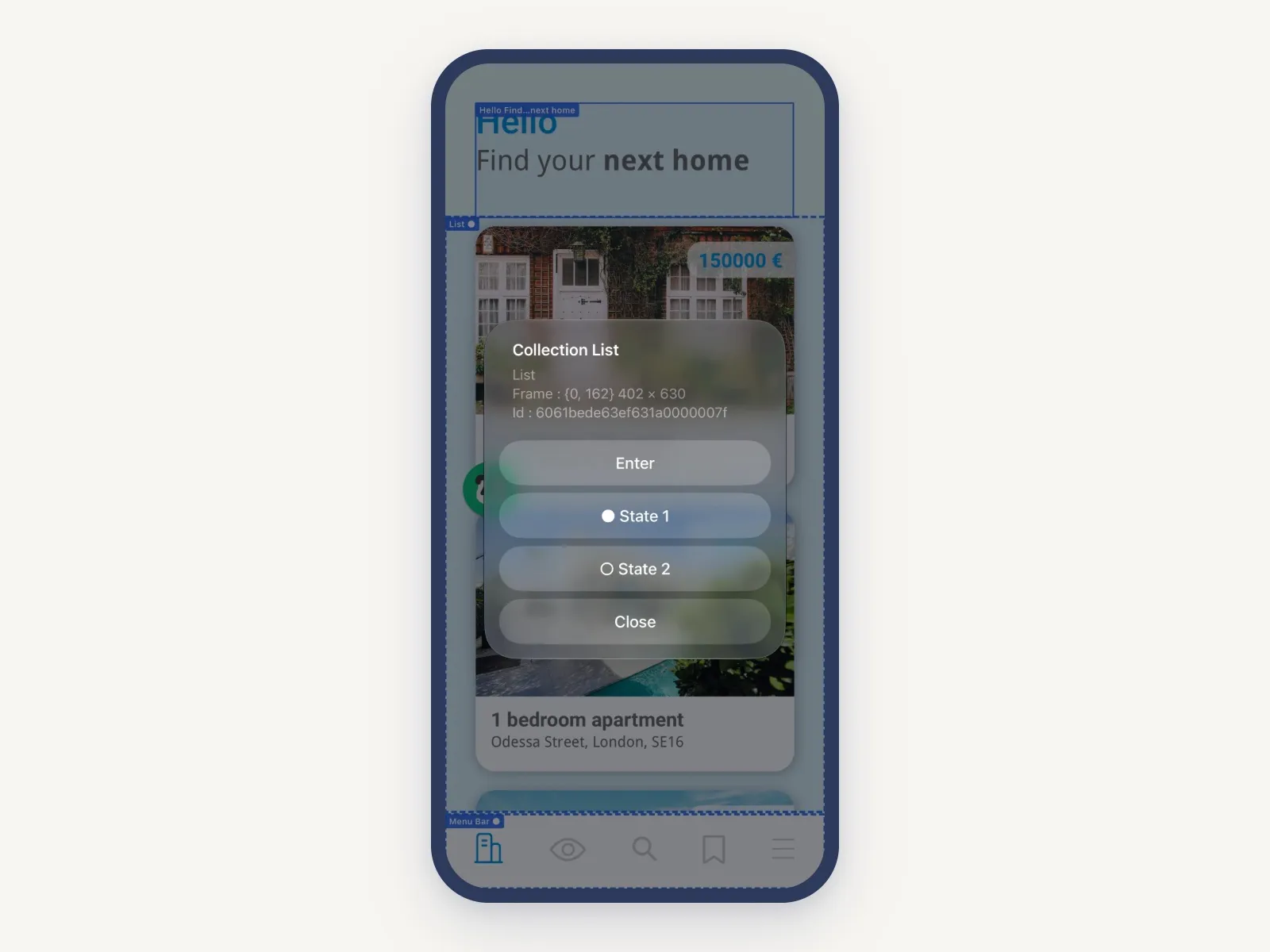
- Inspection: an outline and the type of every component on screen. Double-tap to enter a group. A component’s card gives its frame, its layer and its events.
- Language: switch the project’s language without leaving it.
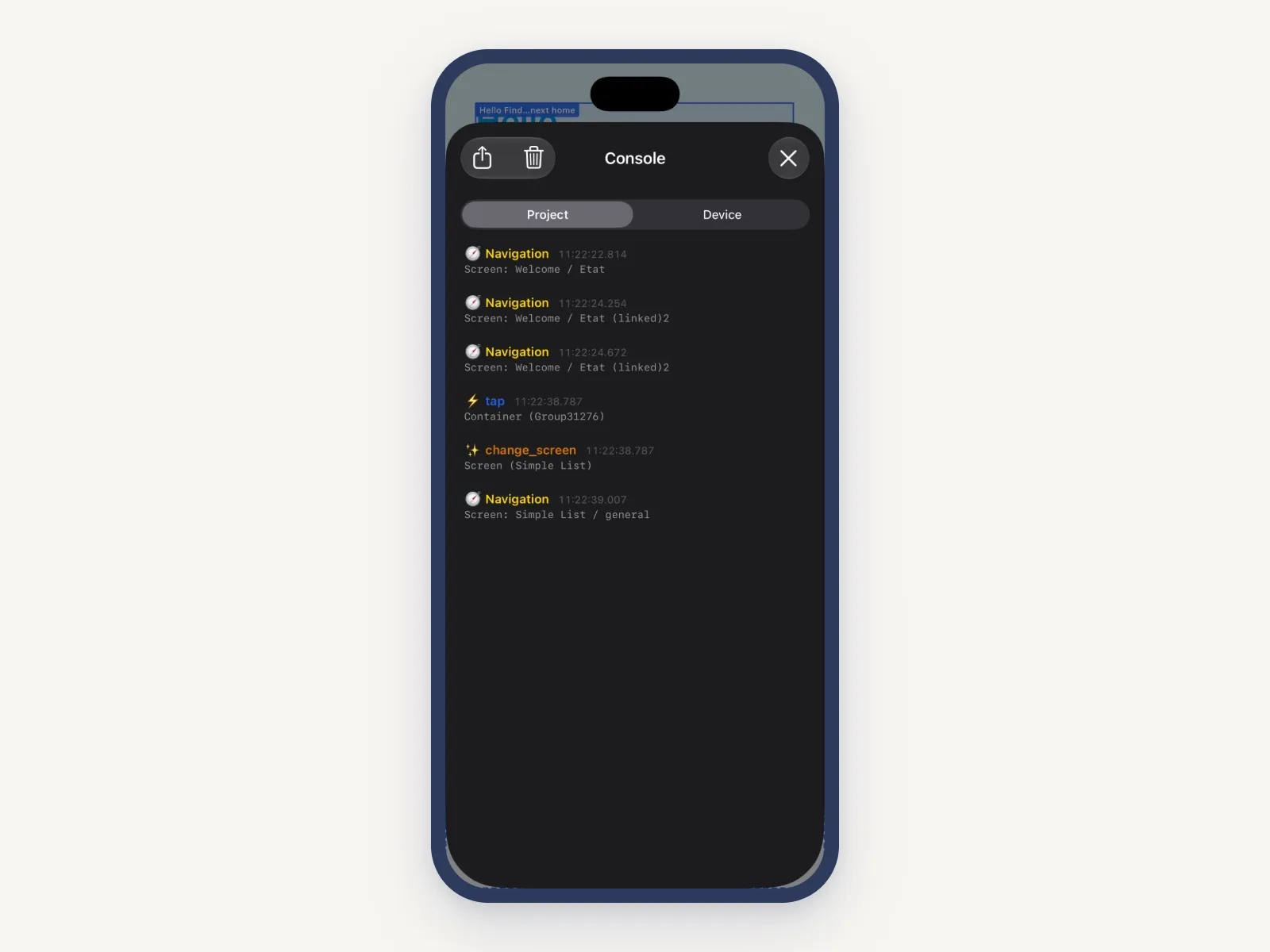
- Console: the project’s logs (events and actions, in the same colors as the web console) and the device’s logs.
These tools show up on projects you own, and only in PandaSuite Viewer: white-label apps don’t have them.
Same as Before
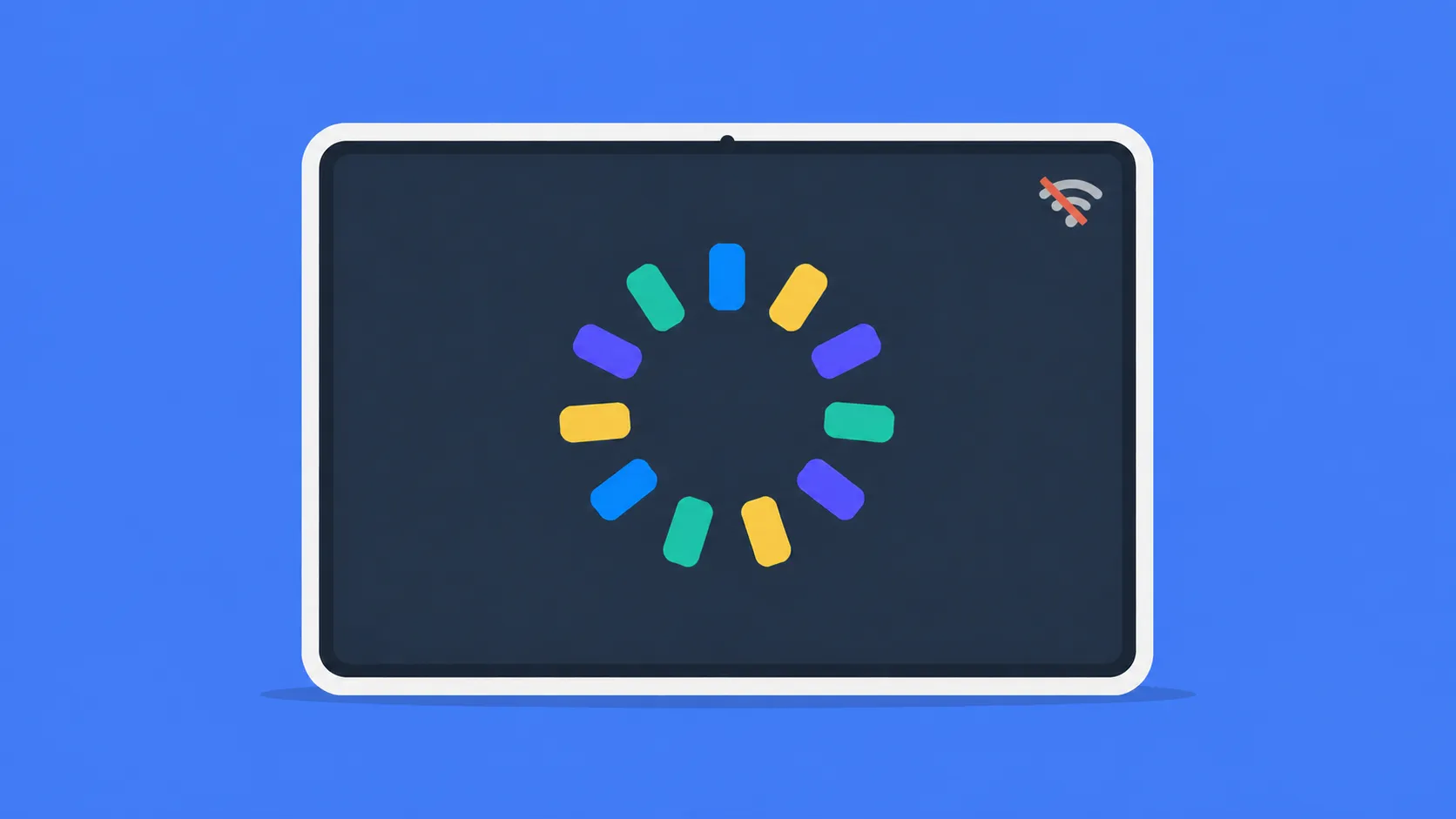
Your projects update in real time when you edit them in the Studio, and the ones you’ve downloaded open offline.
Test First, Then Publish
PandaSuite Viewer is for testing your projects while you build them. For a white-label app, look at our publishing plans. Contact our team to find the plan that fits your needs.